The No Upload Promise
What our promise covers, what still travels, how every release checks every tool, and how to check it yourself.
By PDFCheetah · 21 Nov 2026 · 5 min read
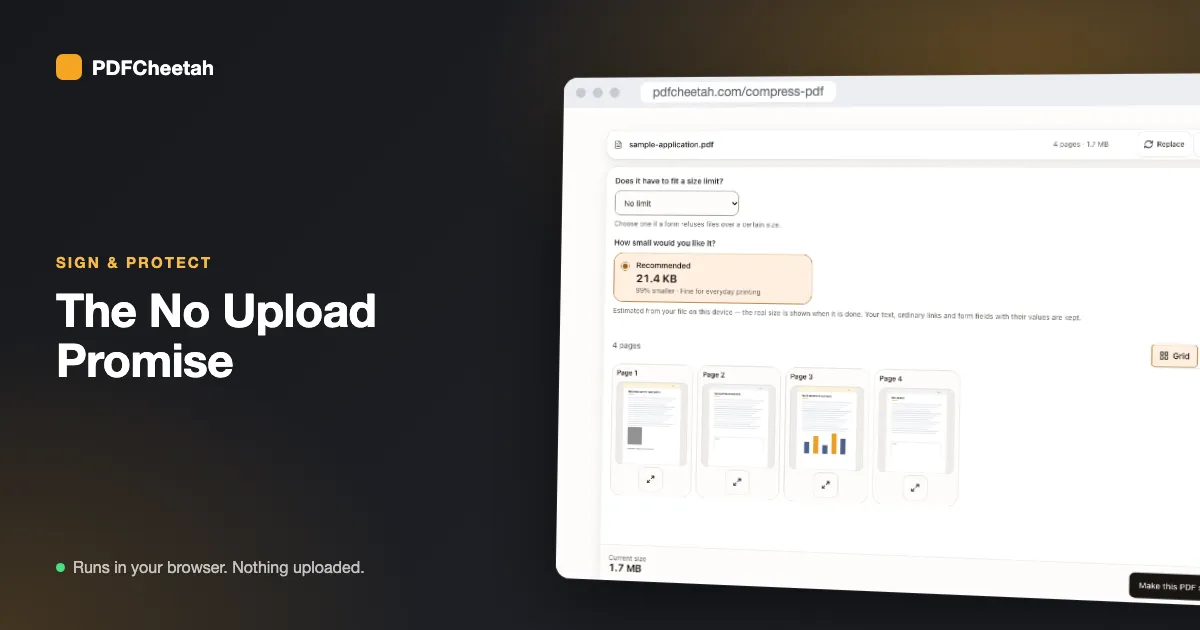
The No Upload Promise is PDFCheetah's own mark, on every tool that keeps it. This page says what it promises, what still travels over the network, how we check it, and how you can check it without taking our word for it.
This tool works on your device. Your file, its name and anything you type into the tool, such as a password or a signature, are never sent to PDFCheetah or anyone else. A copy goes somewhere only when you send it there yourself, for example to your own Google Drive, OneDrive or iCloud Drive.
What it covers
Every tool on this website that shows the No Upload Promise, used on its own page in your browser, one job at a time.
Not covered until each is checked the same way:
- Batch Mode, Folder In / Folder Out, Saved Workflows and PDF Studio, which run several files or several tools in one go
- The desktop app and the browser extension
- Desktop-only and coming-soon tool pages
- The AI connector, which never receives a file
What still travels
- The page itself and the tool's code, as for any website. Our server sees the request and the address it came from, and nothing of your document.
- Fonts, character maps and text-recognition language data the tool downloads from this site to your device, when a document needs them.
- A short usage record: which tool was used, whether the job worked and roughly how long it took, with no file names or sizes. Is PDFCheetah safe? lists every field it can carry.
- Your sign-in details, if you sign in.
None of these contains your document, its name or what you type into the tool.
Your browser limits the PDF work
Most of the PDF work happens in separate files, called workers, and your browser holds each one to a rule served with it that says what it may fetch. Five of them, which put pages together, split, compress, unpack a file's compressed parts and write the working copy to your device, may fetch nothing at all: the rule blocks every fetch, upload, WebSocket and beacon they could make. The two that read and draw pages may fetch only from the folder of replacement fonts and character maps, for a document that did not bring its own; the one that saves pages as WebP or AVIF pictures only from the folder of this site's built files, for its encoders; and text recognition only from its own folder, for its engine and language data. Your document is never part of what is fetched.
To read the rules yourself, open your browser's developer tools on a tool page, go to the Network panel and run the tool. Click a worker file, such as one whose name starts with page-assembly.worker or compress.worker, and read its content-security-policy response header: connect-src 'none' means it may fetch nothing. Two files named pdf-lib.worker and pdfjs.worker carry no rule of their own: they are libraries the workers load, and run under the rule of the worker that loads them. A rule that allows a folder also names our development site, and localhost and 127.0.0.1, the addresses of your own computer, so the same files work while we build and test the site.
The page you work in is held to a wider rule: like every page here, it may reach this site, which is how the usage record is sent. So the browser alone doesn't stop the page sending your document to us. What keeps it from doing so is the check below, which, before every release, records every request each tool's page makes.
Every release checks every tool
PDFCheetah's No-Upload Check, an automated test, drives all sixty-two tools in a real browser, records every request, and fails if your document's bytes, a phrase from inside it or its file name turn up in one. Our build fails if any published tool is missing this check.
That check is part of the full browser test run our release process requires: a new version goes to www.pdfcheetah.com only after the run passes on exactly the code being released. So the date beside each tool below is the day of the release that last checked it.
Check it yourself in four steps
- 1Watch the network while the tool runs. Open your browser's developer tools, go to the Network panel and turn on Preserve log. Load the tool page, choose your PDF, and run the job. A tool that uploads shows a request going out roughly the size of your document. A tool that does not shows nothing of the kind.
- 2Turn the network off and run the job again. With the page already open, tick Offline in the same panel, then choose a file and run the tool. If it finishes and hands you a result, the work happened on your device.
- 3Read the page's own response headers. Click the request for the page itself and read its response headers. The content-security-policy header carries a connect-src list: the only hosts the browser will let that page reach. Anything else the browser blocks.
- 4Look at what was left on your device. In the Application or Storage panel, look at Cache Storage, IndexedDB and, in Chrome, the Origin Private File System. A working copy there is expected; what matters is whether you can remove it.
What the check can't see
- That check compares literal bytes, a planted phrase and a planted mark in the file's name. A hashed or re-encoded copy of your document would match none of them, so it is evidence rather than proof. Step 2 above is the stronger test.
- It drives one ordinary run of each tool. A setting inside a tool that no run reaches is not covered by it.
- The claim covers this application, not your computer. A browser extension that reads pages, other software on the machine, or another person using it, sit outside what a website controls.
- No outside firm has audited this. Everything above is either something your browser shows you or something our own tests check.
Every tool, and when it was last checked
If a tool breaks the promise
If one of our checks, or a report from anyone, finds something taken from a document leaving the device, the No Upload Promise comes off that tool in a release made the same day, and this page records what happened and when it was fixed. To report one, use the contact page.
Questions people ask
Who checks the No Upload Promise?
We do. It is our own promise, checked by our own tests at every release, and by the four steps above, which anyone can follow in their browser. No outside firm has audited it.
Does it cover Batch Mode or the desktop app?
Not yet. Batch Mode, Folder In / Folder Out, Saved Workflows, PDF Studio, the desktop app and the browser extension are covered once our check drives them the same way it drives each tool's own page.
What happens if a tool breaks it?
The No Upload Promise comes off that tool in a release made the same day, and this page records what happened and when it was fixed.