How to convert photos of a document to PDF on your phone
No scanner at home? Photograph the pages, straighten them, and send one clean PDF.
By PDFCheetah · 21 Nov 2026 · 3 min read
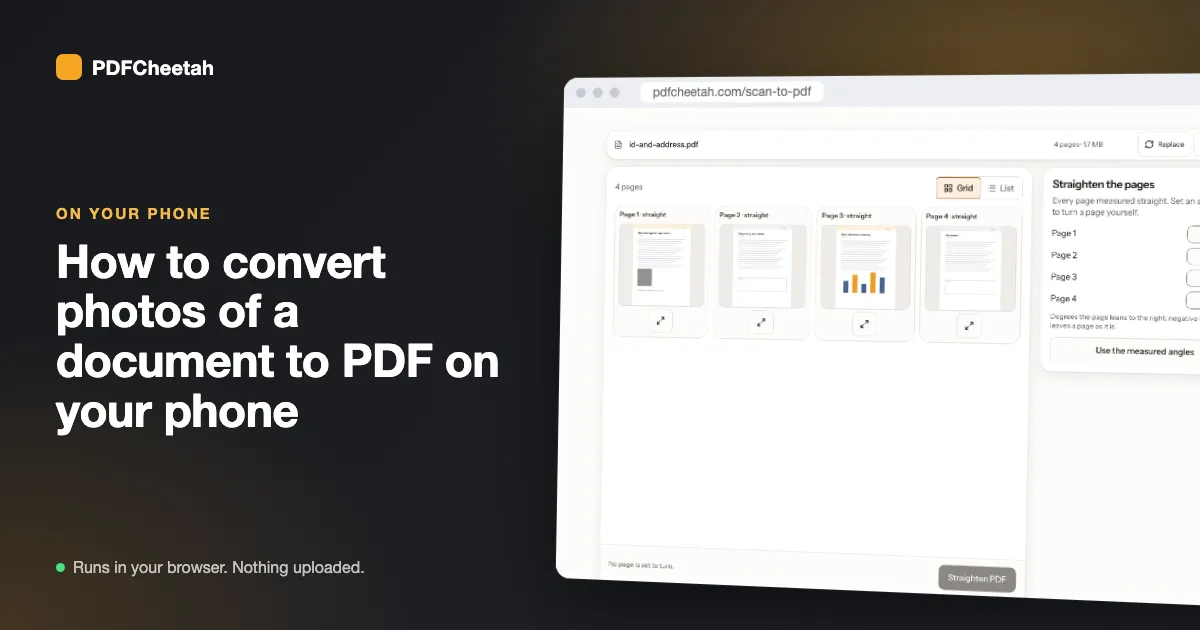
Aisha in Lagos needs to send her landlord a signed tenancy form today. She has no scanner, so she takes three photos of the pages on her kitchen table. They come out tilted, with the edge of the table and her thumb in the frame.
Which tool to use
If your photos are of paper taken at an angle, use Scan to PDF. You mark the corners of each page and it undoes the slant, crops away the table, and can whiten the paper so it looks scanned. If your photos are already straight, such as screenshots or pages shot from directly above, Photo to PDF or JPG to PDF puts each one on its own page with no corner work.
Scan to PDF: straighten your photos into one PDF
- 1Take the photos with your phone's camera in good light, from above, with the whole page in the frame.
- 2Open Scan to PDF and choose the photos.
- 3On each photo, drag the four corners onto the corners of the sheet. They start at the edges of the photo, so place them carefully.
- 4Choose a page size and colour, grayscale or black and white. Grayscale usually makes a phone photo look most like a scan.
- 5Download the PDF and check each page before you send it.
If the PDF is too big to send
Phone photos are heavy, so a few pages can come to several megabytes. Open the PDF in Compress PDF to make it smaller before you email it or upload it. If it needs to go with other documents in one file, see our guide to combining documents for an application.
More video tutorials
What Scan to PDF won't do
- Find the page edges for you. You place the corners by hand.
- Flatten a page that wasn't flat. A curled receipt or the curve of a book near its spine stays bent, and shadows and blur stay in the photo.
- Make the text searchable. The pages are pictures of the paper, and there is no text recognition here.
Questions people ask
Do I need to install a scanner app?
No. Take the photos with your phone's normal camera, then open Scan to PDF in your browser. It never uses a live camera itself.
Are my photos uploaded?
No. Each photo is straightened and the PDF is made in your browser, on your phone. An automated test fails our build if a document's bytes or filename ever reach the network.
My photos are HEIC from an iPhone. Will they work?
Scan to PDF reads JPEG, PNG and WebP, not HEIC. Photo to PDF takes HEIC on an iPhone or iPad with iOS 17 or later, and in Safari on a Mac. Our guide to turning iPhone photos into a PDF has the details.